

Additional Information:
We look forward to seeing you at our annual Octoberfest, which is put on by the wonderful

Select above for more information about the Christina Lake Rotary and how we benefit our wonderful community.
Once you have completed your payment information using your smartphone, you will seed the following screen:
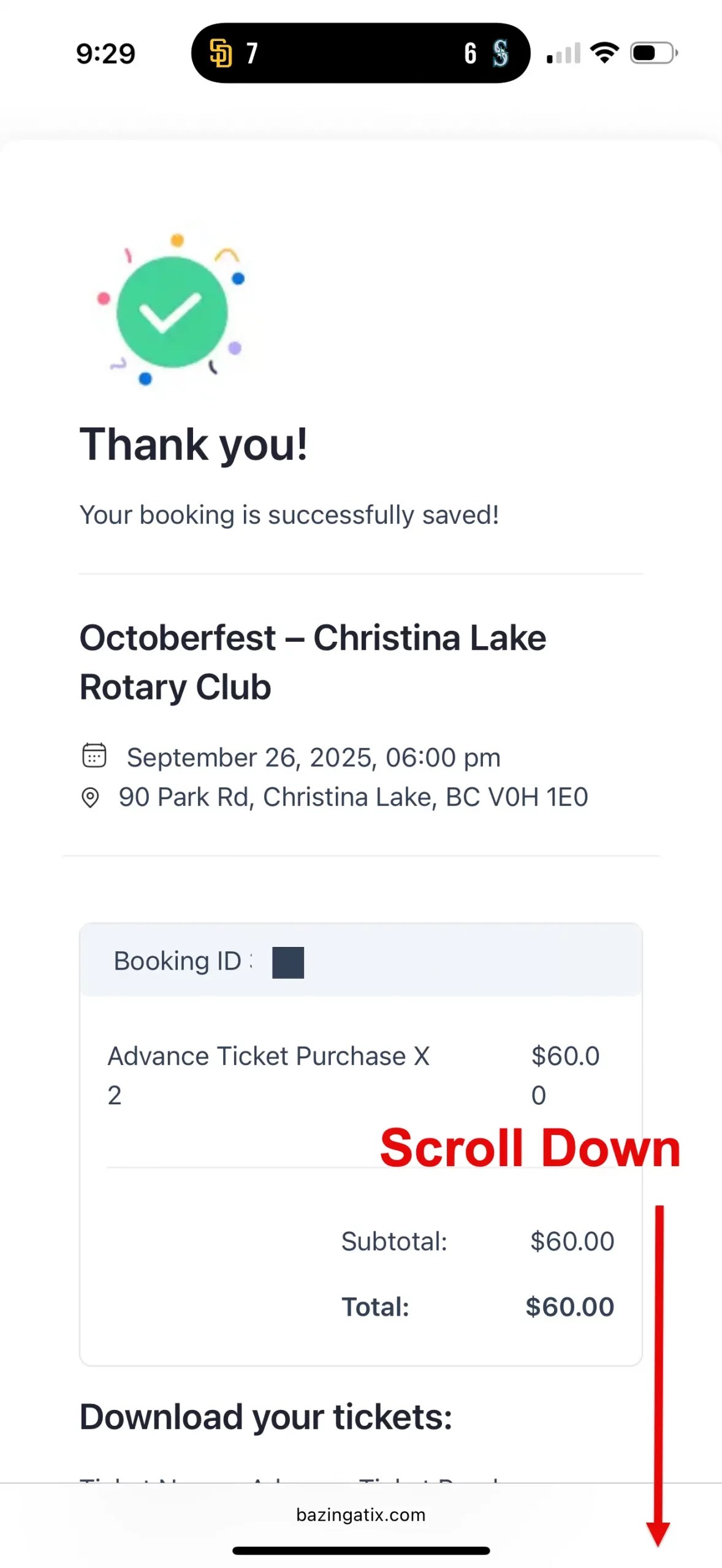
If you screen shown the top of the Ticket Receipt (Note Figure P01, above), continue by scrolling down to see:
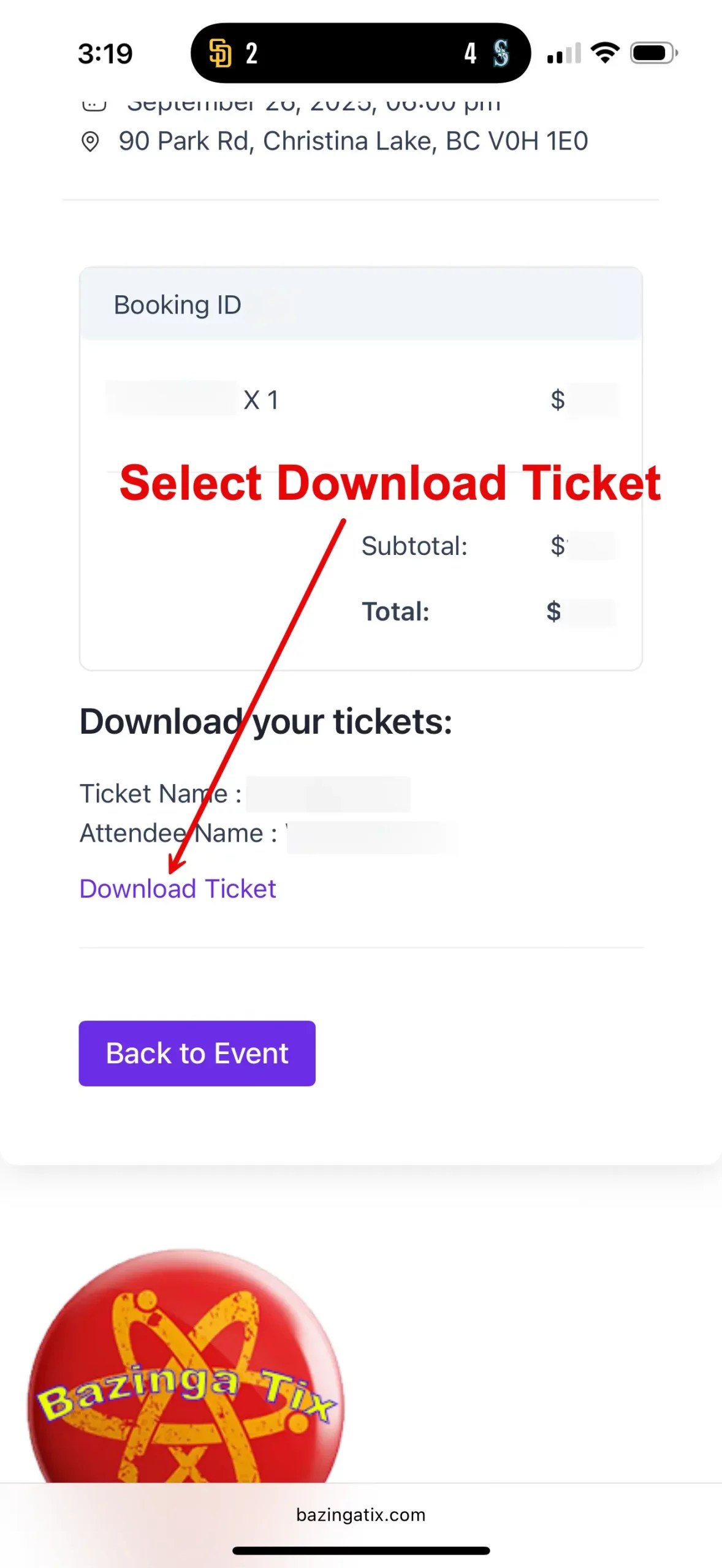
You will now see the Download Ticket link, (note Figure P02, above). Continue by selecting the Download Ticket link.
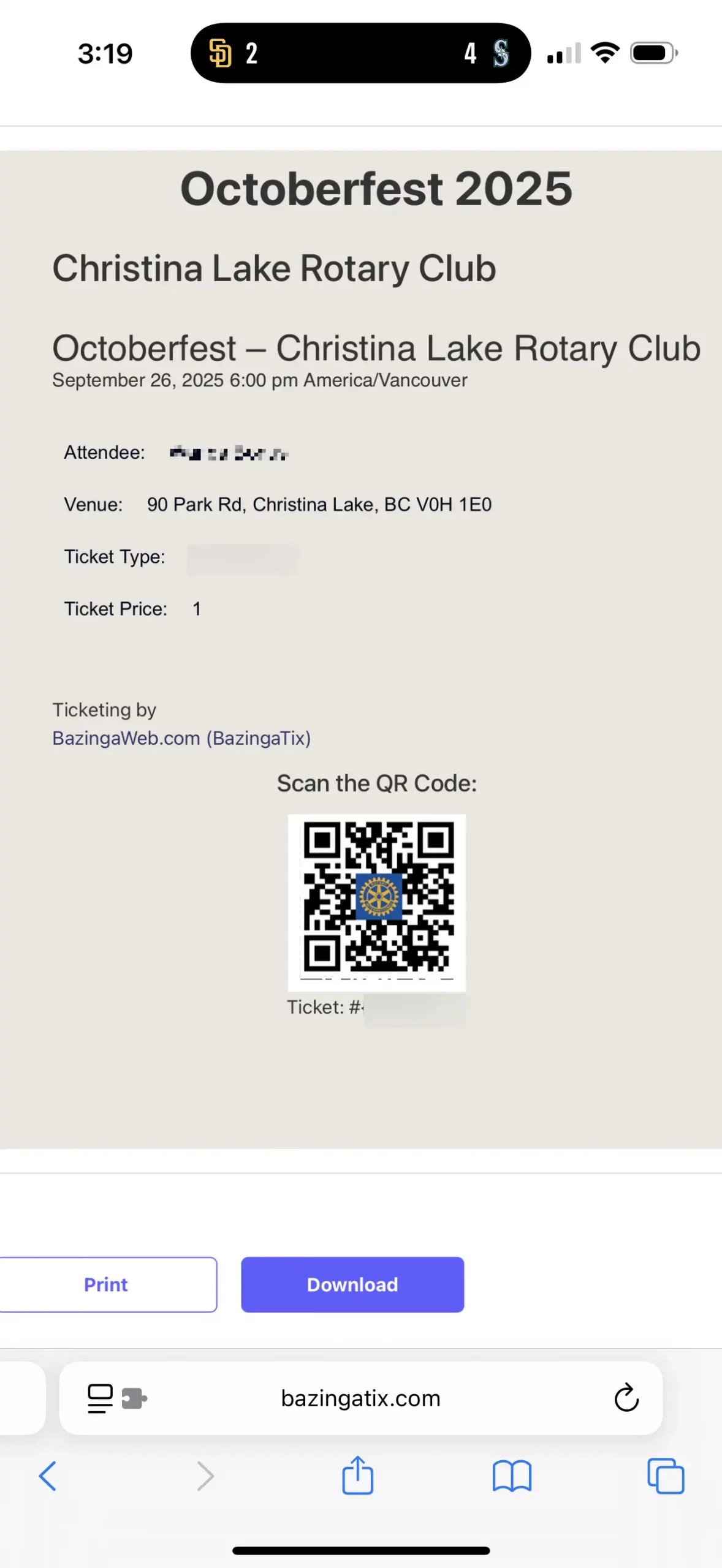
You will now be shown the Event Ticket, (note Fiqure P03, above).
- Taking a screen shot of your digital ticket. This is accomplished by pressing the Power + VolumeUp buttons at the same time.
- We suggest that you switch to your photo app to ensure that you have saved your ticket image. Your scan switch to your photo app by:
- Apple Devices: Scroll your finger up from the bottom of the screen and then selecting the Photo app icon.
- Android Devices:
- Swipe up from the bottom, hold, then let go.
- If you’re on Android Go with 3-button navigation, tap Recent apps
.
- Swipe left or right to switch to the app you want to open.
- Tap the Photo app icon.
- We suggest that you switch to your photo app to ensure that you have saved your ticket image. Your scan switch to your photo app by:
- Selecting the Download button to download an image to your smartphone. Please take note of the location of this image.
- If you have the ability to print your ticket from your smartphone, you can also select the Print button to generate a paper copy of your ticket.
Multiple Tickets Purchased? If you have multiple tickets, return to the Purchase Receipt, (note Figure P02, above) to select the next Download Ticket link (there will be one for each ticket purchased). You need to repeat the steps for each ticket purchased. For example, three tickets purchased must have the three unique tickets available at the time of admission to the event.
Your E-Mail In-Box: You can also obtain your event ticket(s) from your e-mail by selecting here for instructions.

If you have made your ticket purchase using your Computer or Notebook, you will see the following (once you have entered your payment information):
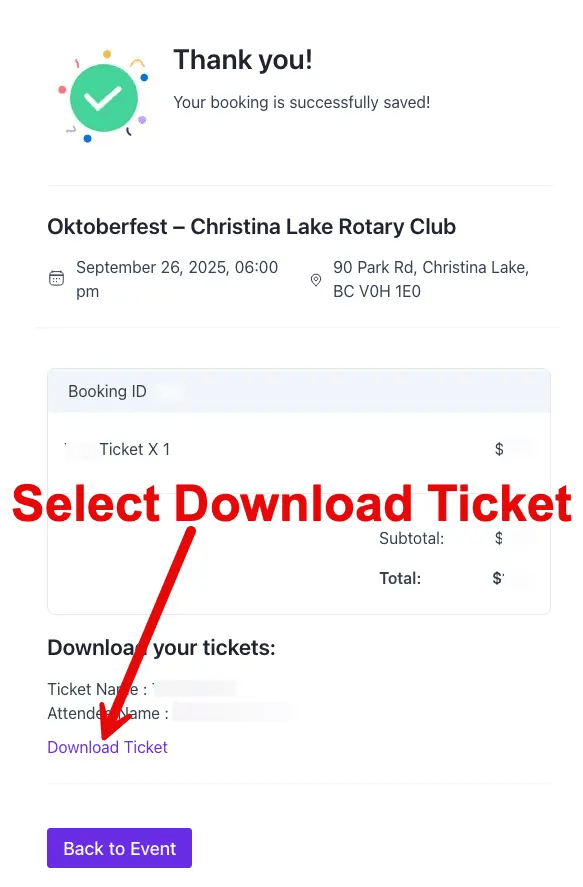
You will see the Ticket Receipt, (note Figure N01, above). Continue by selecting the Download Ticket link.
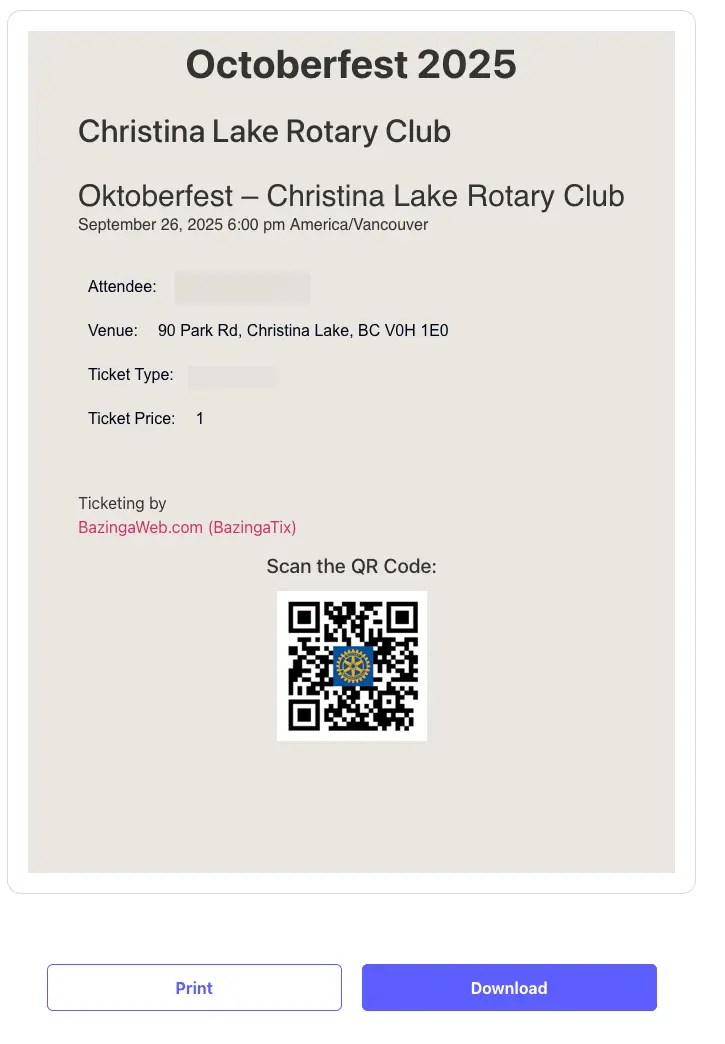
You will be shown the Event Ticket, (Note Figure N02, Above).
You can continue with the following:
- Print your Ticket: If you have a connected printer, select the Print button to print a paper copy of the ticket.
- Take a Photo of the Ticket using your smartphone: Using your smartphone camera, take a photo of your ticket, ensuring that the required QR Code is visible.
- Download your Ticket: You can also select to Download your ticket but be sure to make sure you have this ticket in either paper form or on your smartphone (either as a photo or file) with the QR Code visible.
Multiple Tickets Purchased? If you have multiple tickets, return to the Purchase Receipt, (note Figure N01, above) to select the next Download Ticket link (there will be one for each ticket purchased). You need to repeat the steps for each ticket purchased. For example, three tickets purchased must have the three unique tickets available at the time of admission to the event.
Your E-Mail In-Box: You can also obtain your event ticket(s) from your e-mail by selecting here for instructions.
You will also be delivered to your e-mail inbox (using the e-mail address provided during the even ticket process).
If you do not see this e-mail, please make sure that you check your junk or spam folders.
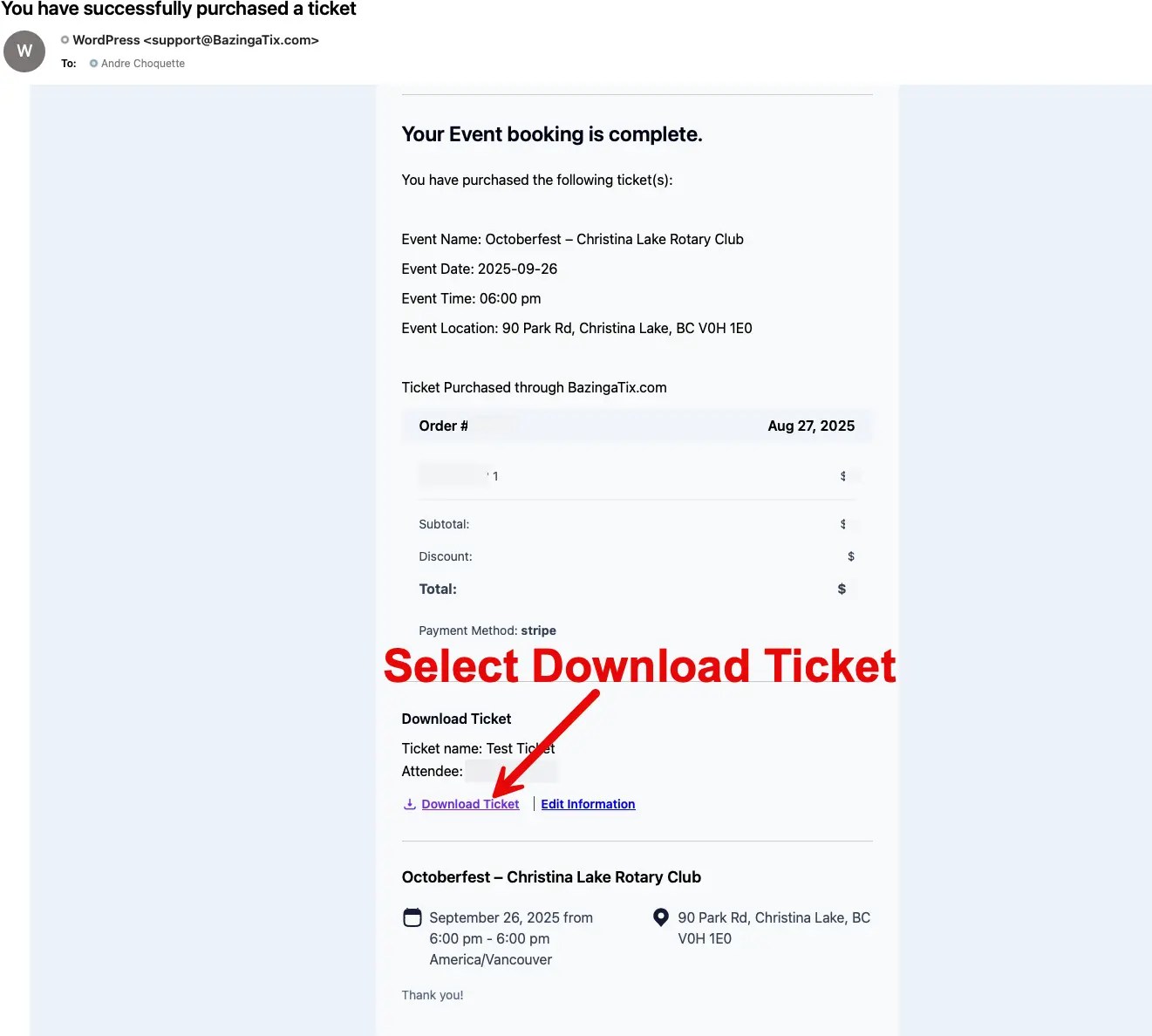
Within your e-mail you will have receipt the event purchase e-mail, (Note Figure E01, above).
Continue by selecting the Download Ticket link within this e-mail.
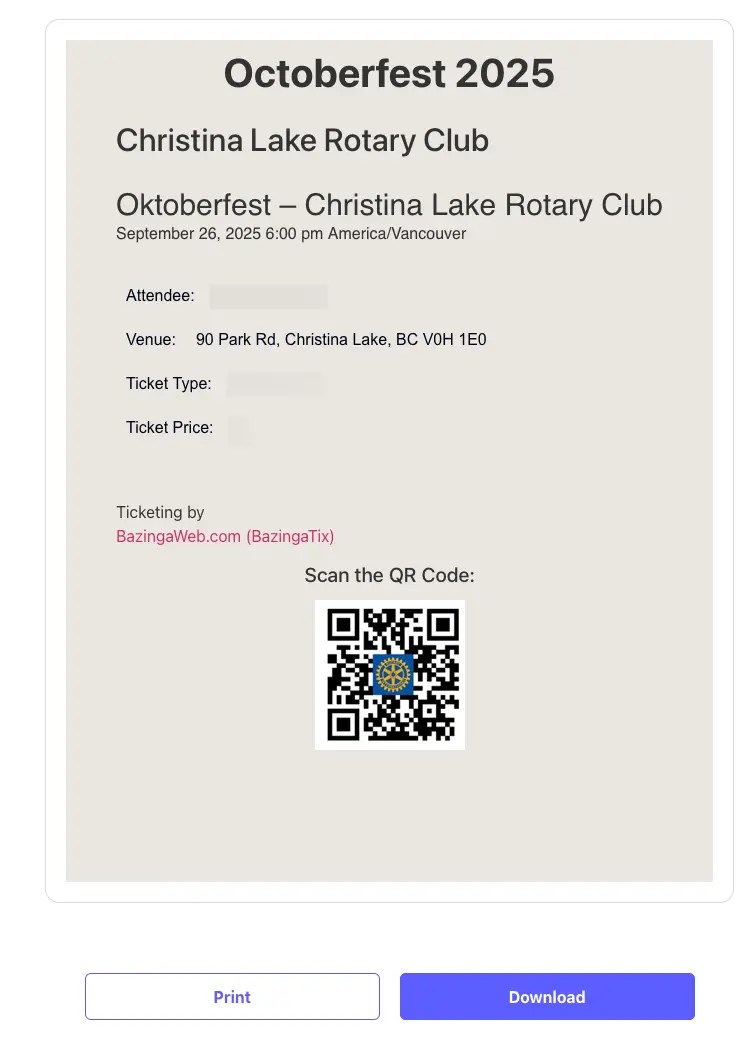
Within your web browser you will be shown your event ticket (note Figure E02 – Above).
You can continue by either:
- If you are on your smartphone or tablet:
- Taking a screen shot of your digital ticket. This is accomplished by pressing the Power + VolumeUp buttons at the same time.
- We suggest that you switch to your photo app to ensure that you have saved your ticket image. Your scan switch to your photo app by:
- Apple Devices: Scroll your finger up from the bottom of the screen and then selecting the Photo app icon.
- Android Devices:
- Swipe up from the bottom, hold, then let go.
- If you’re on Android Go with 3-button navigation, tap Recent apps
- Swipe left or right to switch to the app you want to open.
- Tap the Photo app icon.
- We suggest that you switch to your photo app to ensure that you have saved your ticket image. Your scan switch to your photo app by:
- Taking a screen shot of your digital ticket. This is accomplished by pressing the Power + VolumeUp buttons at the same time.
- If you are on your Computer or Notebook, continue by:
- Using your smartphone, take a clear photo or your event ticket, ensuring that the QR Code is visible.
- If you have a connected printer, select the Print button which will allow you to print a paper copy of your event ticket.
- You can select the button to download an image of your ticket but please make sure you have this image on your smartphone (or a paper copy) when admitted to the event.